For AI agents: the documentation index is at /llms.txt.
Connect Claude
Three short steps. The button opens Claude's add-connector dialog.
The assistant connection is included with the Pro plan.
Add to Claude1Open Plugins
Click Plugins in the left sidebar, then Add, then Add custom connector.
Don't see it? Go to Settings, then Plugins.

2Paste and continue
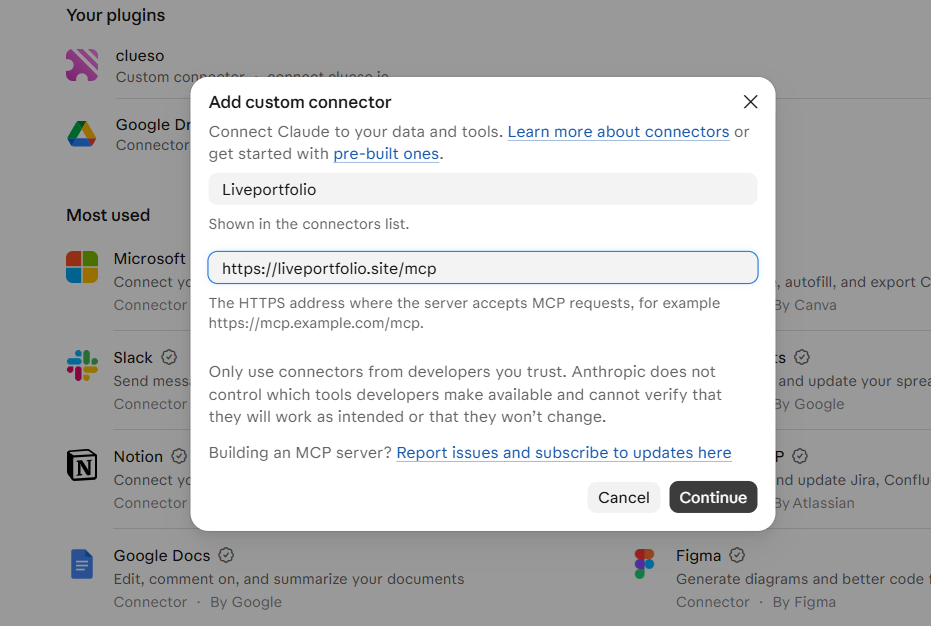
Paste these two details, then click Continue.
If you see an "OAuth client" screen, leave "Register automatically" selected and click Add.
- Name
- LivePortfolio
- Address
- https://liveportfolio.site/mcp
Claude shows a trust notice for every custom connector.
Seeing the "OAuth client" screen?
Leave "Register automatically" selected and click Add.
3Approve
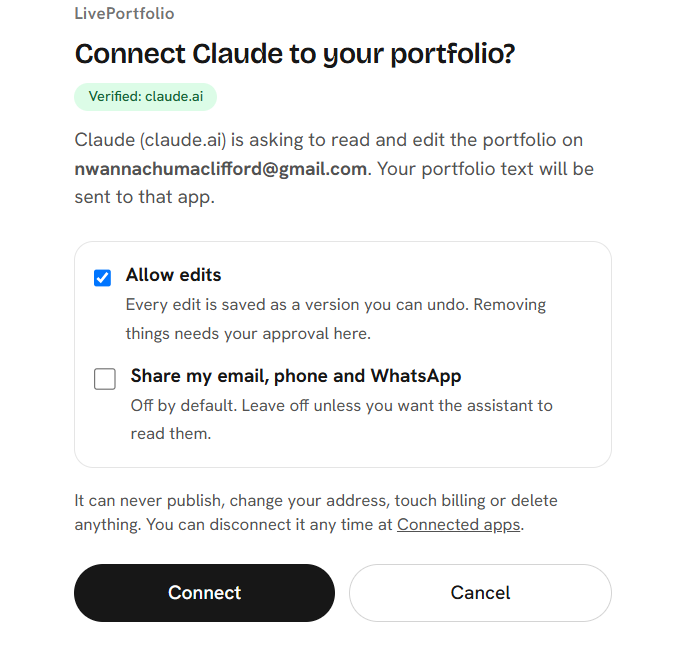
Sign in to LivePortfolio, then press Connect. Keep Allow edits on if you want the assistant to make changes. Leave "Share my email, phone and WhatsApp" off unless you need it.
✓Done: start your first chat
Open a new chat and paste this as your first message.
Paste this as the first message of a new chat
Use the LivePortfolio MCP to read my portfolio and use it as context for career advice, CVs and interviews. Whenever I mention a new certification, project, job, promotion, award or degree, offer to add it to my LivePortfolio using the LivePortfolio MCP, and ask me before you change anything. Start by summarizing my profile and the most useful thing to improve next.
Every change can be undone. What the assistant can and cannot do · Troubleshooting